Open Convert JPG to PDF, drop all your photos at once, drag them into the right order, then click Make the PDF and Download the PDF. Each photo becomes one A4 page of a single PDF, whether you combine pictures into one PDF for a move-in report, an insurance claim or a photo album. The tool reads JPEG and PNG files. Photos saved by an iPhone in HEIC are refused, so convert them to JPEG first.
Convert JPG to PDF · free, no sign-up, in your browser.
Combine photos into one PDF in three steps
- On Convert JPG to PDF, select Choose images, or drag the photos from a folder onto the page. Select them all at once; you can still add more later with Add images.
- Each photo shows up as a page, with its file name underneath. Drag the pages into the order you want. Under each page, one button rotates it 90° and another removes it.
- Click Make the PDF, then Download the PDF. The file is named after the first photo, with
-convertedadded. If the first photo isliving-room.jpg, you getliving-room-converted.pdf.

The photos are read and assembled in your browser, on your device. The site loads the tool’s code, but no photo is uploaded to a server or stored.

Convert JPG to PDF · your photos never leave your device.
Put the pages in the right order before you make the PDF
The pages arrive in the order your browser passes the files, usually by file name. Fix the order before you click Make the PDF. If you need to change it afterward, click Back to the pages, rearrange them and make the PDF again.
- With a mouse: click a page and drag it into place. The others move aside.
- On a phone or tablet: touch and hold a page for a moment, then drag it.
- With a keyboard: move to a page, press Space, move it with the arrow keys, then press Space again to drop it, or Escape to cancel.
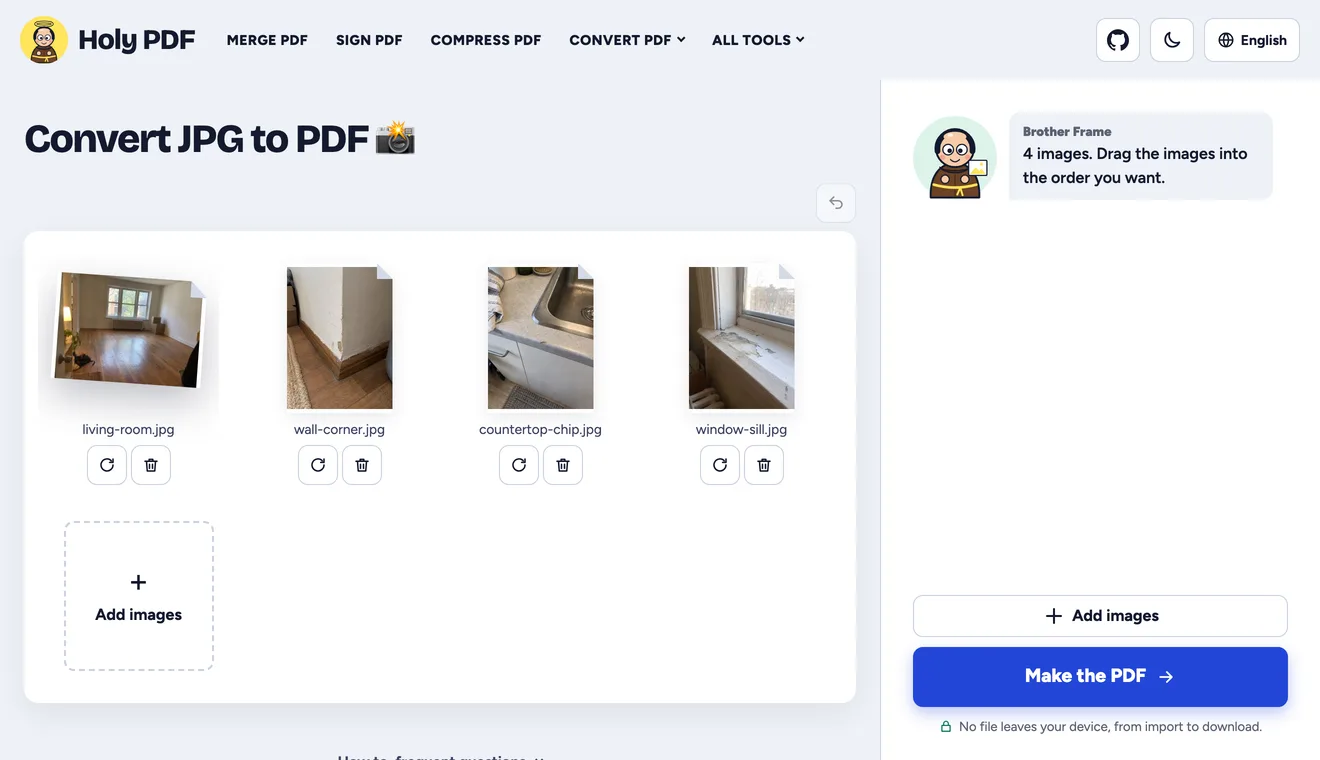
To undo a move, click the arrow button above the pages or press Ctrl+Z (⌘+Z on a Mac).
If you name your photos before you start (01-living-room.jpg, 02-wall-corner.jpg), you will have less rearranging to do: the names show under each page, so you can check the order at a glance.
Photos from an iPhone: convert HEIC to JPEG first
An iPhone often saves its photos in HEIC, and Convert JPG to PDF does not read that format. A HEIC photo stays out of the PDF: its name appears above the pages with the message “This file format is not supported.” The tool checks what is inside the file, not its name: a HEIC photo renamed .jpg is refused the same way.

Three ways to get JPEG files:
- On a Mac, with Preview: open the photo, choose File > Export, then pick JPEG in the Format menu. For several photos, open them in one Preview window, select them in the sidebar, then export (Apple’s instructions).
- On a Mac, with Photos: select the photos, choose File > Export > Export [number] Photos, and pick JPEG as the Photo Kind (Apple’s instructions).
- For the next photos you take: on the phone, open Settings > Camera > Formats and choose Most Compatible. The setting changes the photos you take from then on, which are saved as JPEG (Apple’s HEIF support page).
If your photos are of paper documents (receipts, forms, pages of a contract), you can skip the conversion: Scan a document reads HEIC photos directly, finds the edges of the sheet, straightens it and puts the pages into one PDF.
Page size, orientation and quality
- Page size: every page is A4, 210 by 297 mm (8.27 by 11.69 inches). The tool has no US Letter option.
- Orientation: a photo wider than it is tall gets a landscape page; the others get a portrait page. A PDF can mix both, as in the first screenshot.
- Fit: the photo is scaled to fill the page as much as it can, without being stretched or cropped. When its shape is not that of an A4 sheet, which is the case for most phone photos, you will see white margins on two sides.
- Orientation saved by the phone: a phone can record a photo sideways with a tag that says which way is up. The tool follows that tag, so the page comes out the right way up, and you can still turn it with the rotate button.
- Quality: a JPEG photo goes into the PDF as it is, without being compressed again, so it keeps all its detail. A PNG image is compressed without loss.
If the PDF is too large to send
Because the photos are not compressed again, a PDF of JPEG photos is about the same size as the photos combined. In the example above, four photos totalling 1.8 MB gave a PDF of 1.8 MB. With many full-resolution phone photos, the PDF can grow too large for an email or an upload form.
In that case, run the PDF through Compress PDF and start with the Recommended level. Compression makes the photos lighter by reducing their detail: open the result and check that what matters is still readable. If the PDF barely shrinks, Holy PDF gives you the file back as it was.
What the tool does not do
- It does not read HEIC, WebP, GIF or RAW files: only JPEG and PNG.
- It always makes A4 pages, one photo per page, without margins to set. To put several photos on one sheet, make the PDF first, then run it through the Pages per sheet tool.
- It does not straighten or crop a photo, and does not make its text searchable. For photos of documents, Scan a document does both.
- It makes a new PDF from photos. To add photos to a PDF you already have, use Merge PDF: it offers to turn the images into pages.
FAQ
How do I combine multiple photos into a single PDF?
Open Convert JPG to PDF, select all the photos at once, drag them into the order you want, then click Make the PDF and Download the PDF. You get one PDF with one photo per page.
How to combine photos to PDF on iPhone?
Open Convert JPG to PDF in your phone’s browser, choose the photos, put them in order with a touch and hold, then tap Make the PDF and Download the PDF. If a photo is refused with “This file format is not supported.”, the file reached the tool in HEIC: set the camera to Most Compatible for the next ones, or convert the existing ones to JPEG.
Do the photos lose quality when combined into a PDF?
No. A JPEG photo is placed in the PDF as it is, without new compression, and a PNG image is compressed without loss. Detail is only lost if you compress the PDF afterward.
Are my photos uploaded anywhere?
No. Holy PDF builds the PDF in your browser, on your device. The photos are not sent to a server and are not stored. It is free, with no account and no watermark.