
You do not need a desktop scanner to combine several pages into a PDF. Your phone is enough: photograph the pages, then let Holy PDF straighten and group them on your device.
1. Photograph every page
Place the sheets flat under even light. Keep the whole page inside the frame and avoid casting a shadow with your hand or phone.
Take all the photos before you start. You can then select them together in Scan a document. The tool accepts JPEG and PNG files, as well as HEIC photos from an iPhone.
2. Import the photos together
Open the Scanner and choose every page of the document in the same import. They are placed in one multi-page document.
Holy PDF detects the paper, straightens the page, and removes shadows. Check any page marked with a warning: move its corners if the outline is wrong, then erase anything outside the paper when necessary.
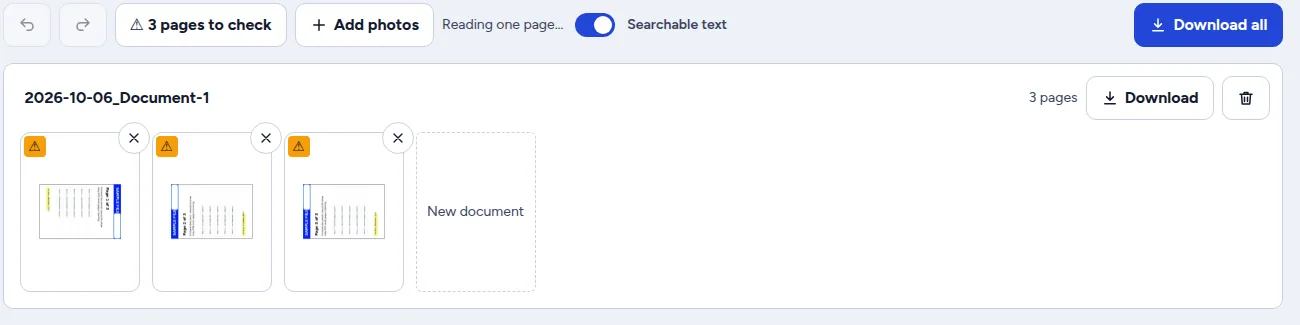
All this processing happens in your browser. The photos are not uploaded to a server.
3. Put the pages in order
Drag the pages into the correct order. You can also:
- rotate a page photographed upside down;
- remove a duplicate page;
- move a page to another document;
- create a new document if you photographed several sets of paperwork together.
If you need to fix the order later, use Organize PDF pages.
4. Make the PDF searchable
The Searchable text option adds an invisible text layer over the pages. You can then find a word or copy a passage without changing how the scan looks.
Text recognition currently supports English and French. To process a PDF that has already been scanned, use PDF OCR instead.
5. Download one PDF
Give the document a clear name, then download it. Every page in that document is saved in one PDF.
Open the file before sending it and check:
- every page is present;
- the pages are in the right order;
- the text is readable;
- no edge has been cut off;
- the file meets the recipient’s size limit.
If the file is too large, run it through Compress PDF.
If your pages are already separate PDFs
You do not need to photograph them again. Open Merge PDF files, add the files, arrange them, and download the final document.
Frequently asked questions
Can I scan two pages into the same PDF?
Yes. Select both photos in the same import and they will become the two pages of one document.
Can I use HEIC photos from an iPhone?
Yes. The Scanner accepts HEIC photos as well as JPEG and PNG files.
How do I separate two documents photographed together?
Move the pages of the second document to the “New document” area. You can then download each document separately.
Are my photos uploaded to the internet?
No. Holy PDF processes the photos in your browser. They stay on your device.
Can I add more pages after the first import?
Yes. Add the new photos, move them into the right document, and put them in order.