To fill out a PDF form, open Edit a PDF, choose the file, and click into the first field. Type your answer, press Enter, and move on to the next one. Checkboxes toggle with a click, dropdowns open a menu. When every field is done, select Save the changes and download the copy. Holy PDF writes each answer into the form’s own field, so Acrobat, Preview or a browser shows it without any setting.
Is your PDF really a form?
A fillable PDF carries interactive fields: boxes a reader can type into, checkboxes, lists. Many “forms” are not like that. They are a scan or an export of a paper form, with printed boxes and no field behind them.
Holy PDF shows you which one you have. Open the file in Edit a PDF: when the page holds fields you can fill, the hint above the tools reads Click a form field to fill it. If no such hint appears, with the Select tool active and nothing selected, the page has no fields, and the section when the PDF is not fillable applies instead.
Fill out the PDF form in Holy PDF
- Open Edit a PDF and select Choose a PDF file. The first page appears.
- Click a text field. A text box opens over the field, showing its current value. Type your answer, then press Enter or click anywhere else to confirm.
- Click a checkbox to check it; click again to uncheck it. Click a radio button to pick it.
- Click a dropdown or a list box: a menu opens with the form’s options. Pick one.
- Use the arrows of the page bar to reach the next page, and fill it the same way.
- Select Save the changes, then Download the PDF.
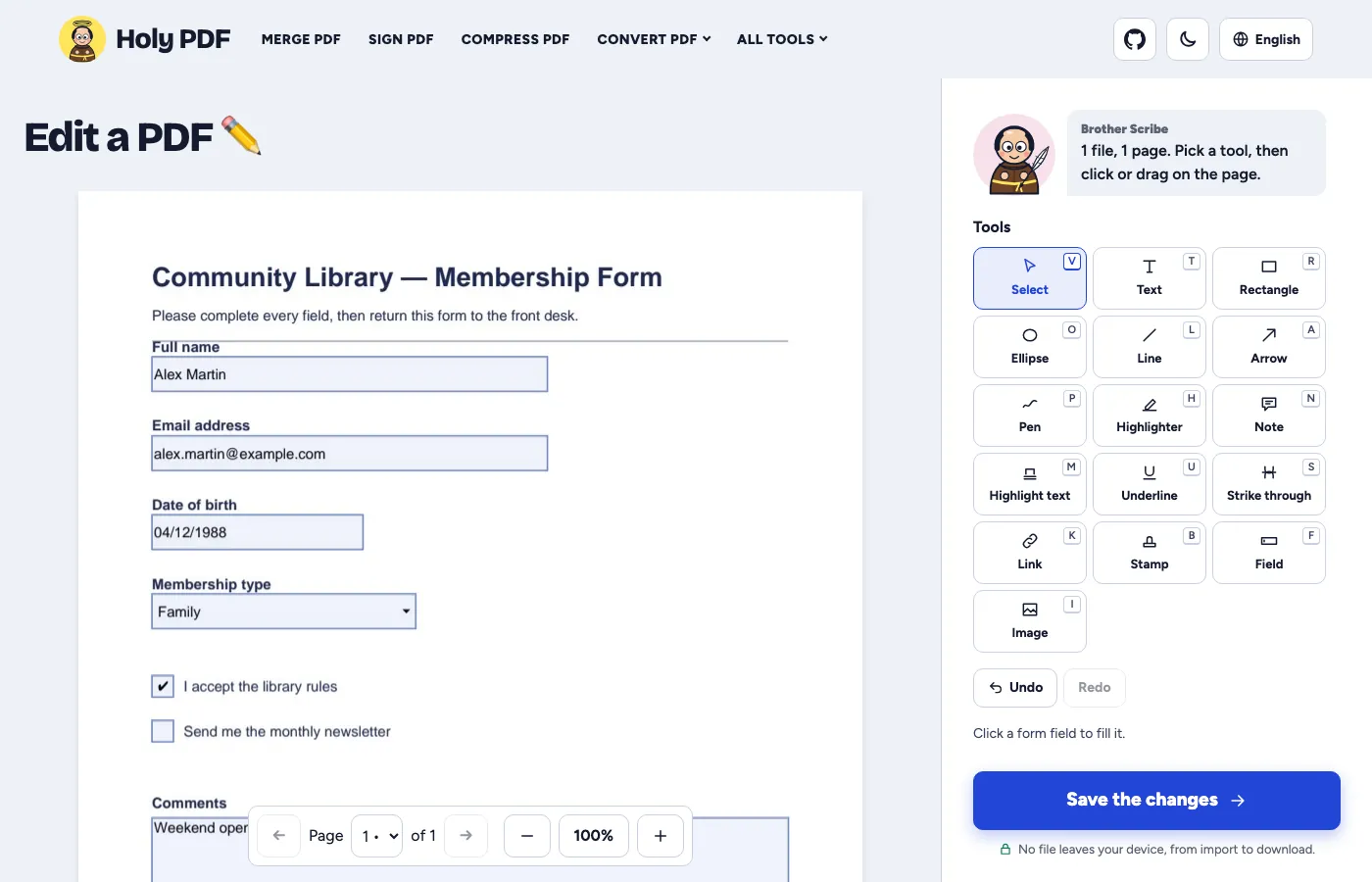
Each answer you confirm is one undo step: Ctrl+Z (⌘Z on a Mac) takes back the last one. The page preview is redrawn with your values as you go, in the font and color the form defines, so what you see is what the file will show.
The file is processed in your browser and is not uploaded to Holy PDF. Your PDFs stay on your device explains how that works.
How to fill out a PDF form on a Mac
On a Mac, Preview opens PDF forms too. Apple’s guide says to click a field in the form, then type your text, and to add a text box instead when a PDF does not accept typing.
Holy PDF does the same job in your browser, with no app to install, and the copy you download is a regular PDF. Use whichever is handy.
Saving the form so your answers stay in the file
The IRS, for its own forms, advises you to use the functionality of Adobe Reader rather than your web browser when saving or printing. Holy PDF takes another route: it never saves in place. Save the changes builds a new file in which every changed field carries its value and its redrawn appearance. Readers do not need any setting to display it.
Keep both the downloaded copy and the untouched original, so you can start over if an answer is wrong.
When the PDF is not fillable
If the form has no fields, you can still write on it. In the same tool, pick Text, click where the answer goes, and type. Drag instead of clicking to draw a box whose lines wrap at its width. The text you add stays real text: it can be selected, copied and searched in any reader.
For a form that came out of a scanner or a camera, the page is a picture. The Text tool works on it just the same. If you need the printed words of the scan to be searchable too, PDF OCR makes them searchable. You don’t need it to type your answers.
The Field tool goes one step further and adds real fields to a page: a text field, a checkbox or a dropdown. You fill a field you added only after saving, in a second pass, so the Field tool is for preparing a form that others will fill.
Check the saved copy, then lock it if needed
Open the downloaded file in another reader and look at every page: the answers should be there, in the fields. If the form is going to a third party, Sign a PDF adds a visible signature on top.
If you want to lock the answers, run the copy through Flatten a PDF. The fields become part of the page content: a reader can no longer change them, and the text stays selectable. A field you left empty may vanish from the flattened page if the form stored no appearance for it. Keep the unflattened copy for yourself in case something has to change later.
Limits to know before you start
- XFA forms. On an XFA form, usually no field shows up, and the Field tool cannot add one. Open those forms in Adobe Acrobat Reader.
- Scripts. Forms can carry scripts that format a date, compute a total or validate a value. Holy PDF does not run them. Type the final value yourself, and check the totals.
- Length. A text field accepts only as many characters as the form allows; extra characters are dropped.
- Read-only fields, buttons and signature fields do not react to a click. They are not meant to be filled this way.
- Signed PDFs are refused: a changed copy would invalidate the signature. A password-protected PDF opens with its password, and the copy keeps it.
Frequently asked questions
Can I fill out a PDF form for free, without Adobe?
Yes. Holy PDF’s Edit tool is free, needs no account and no installation, and runs in any current browser. The copy you download is a standard PDF that opens in Adobe Reader and any other reader.
Why does my filled PDF open empty somewhere else?
A PDF reader draws a field from the appearance stored in the file. Holy PDF writes both the value and a fresh appearance for every field you change, so a reader displays it without any setting. If a copy made elsewhere opens empty, open it in Holy PDF, retype each answer and download the new file.
Can I fill out a PDF form on my phone?
Yes, in the phone’s browser: open Edit a PDF, choose the file, tap a field and type with the keyboard. The file stays on the phone.
Can I save a half-finished form and come back later?
Save the copy with Save the changes, then open that copy again in the tool: your earlier answers are still there, and you fill in the rest.
How do I know a PDF is an XFA form?
Usually no field shows up on its pages, and the hint Click a form field to fill it. does not appear. If you try to add a field to it with the Field tool, saving is refused with a message that names the XFA form. Those forms are made for Adobe Acrobat Reader.
Does filling the form send my data anywhere?
No. The file is opened, filled and saved in your browser. No file is sent or stored.