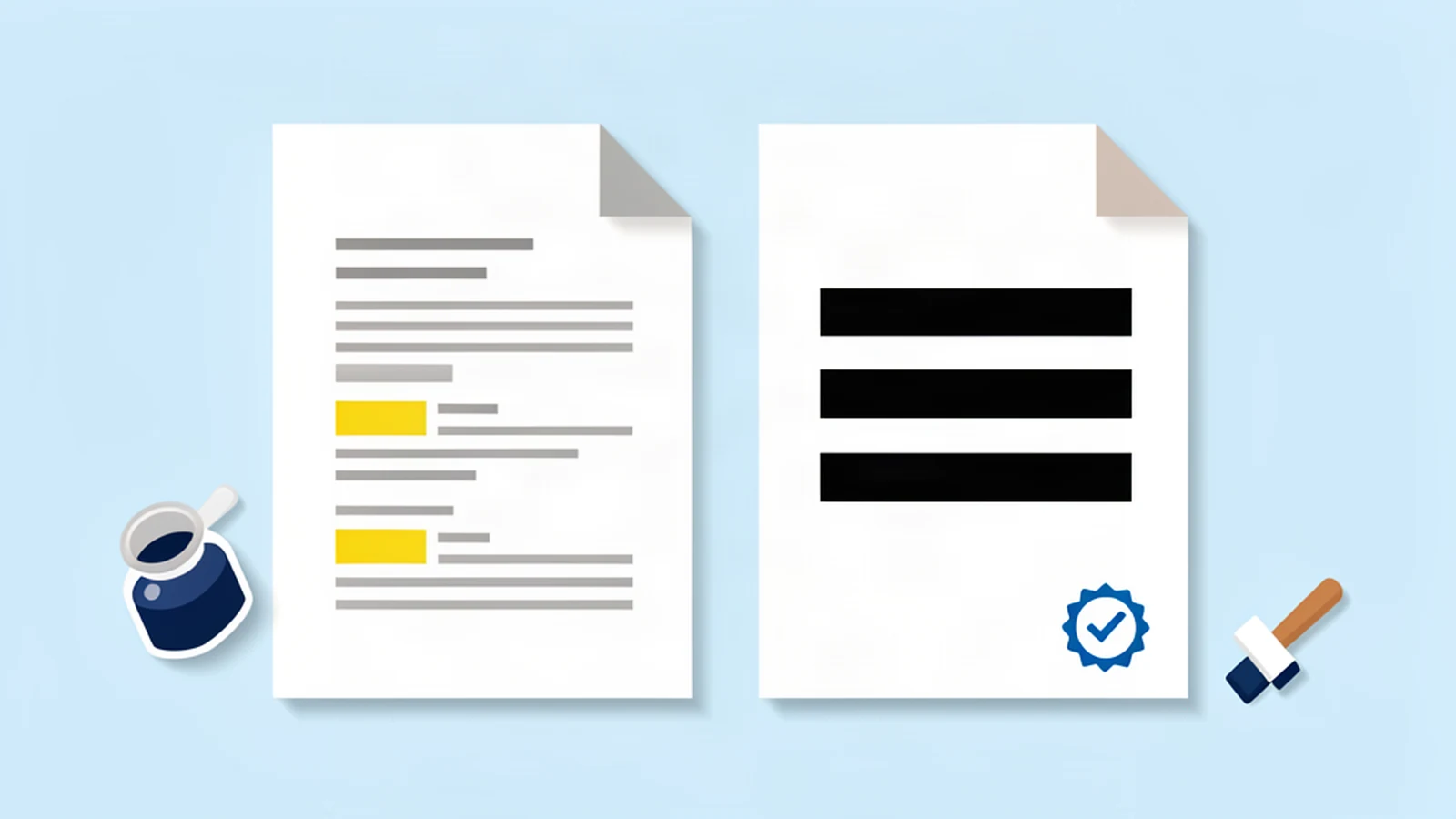
To redact a PDF, open Redact a PDF, choose a copy of the document, and draw a zone over every item that must be removed. Holy PDF turns each marked page into an image and paints the zones black. The page’s original text and objects are not merely hidden under a shape.
Why a visual black box is not redaction
A rectangle added in a general PDF editor may only sit above the words. The text can remain in the file, where someone may be able to select it, copy it, search for it, or remove the rectangle. The US District Court for the District of New Jersey warns against boxes, highlighting, and other visual cover-ups that do not remove the underlying data.
Safe redaction is about the exported file, not how the editing screen looks. You need to create a new copy, then test that copy before sharing it.
Work from a copy and identify every risk area
Keep the original in a separate location and redact a duplicate. This lets you start over after a misplaced zone and prevents accidental damage to your only source. The UK’s ICO guidance also recommends working from a copy and reviewing the exact document you plan to disclose.
Read every page first. Look for names, addresses, signatures, phone numbers, email addresses, account numbers, case references, and information displayed by form fields or annotations. Note hidden-data risks such as the document title, bookmarks, and metadata for a separate check.
Redact the PDF in Holy PDF
- Open Redact a PDF and select Choose a PDF file.
- Drag across the first item you need to remove. A black zone appears.
- Add zones to every relevant area and page.
- Move a zone with its handle or remove it with the X button. Clear this page removes all zones on the current page.
- Select Redact the PDF, then download the resulting copy.
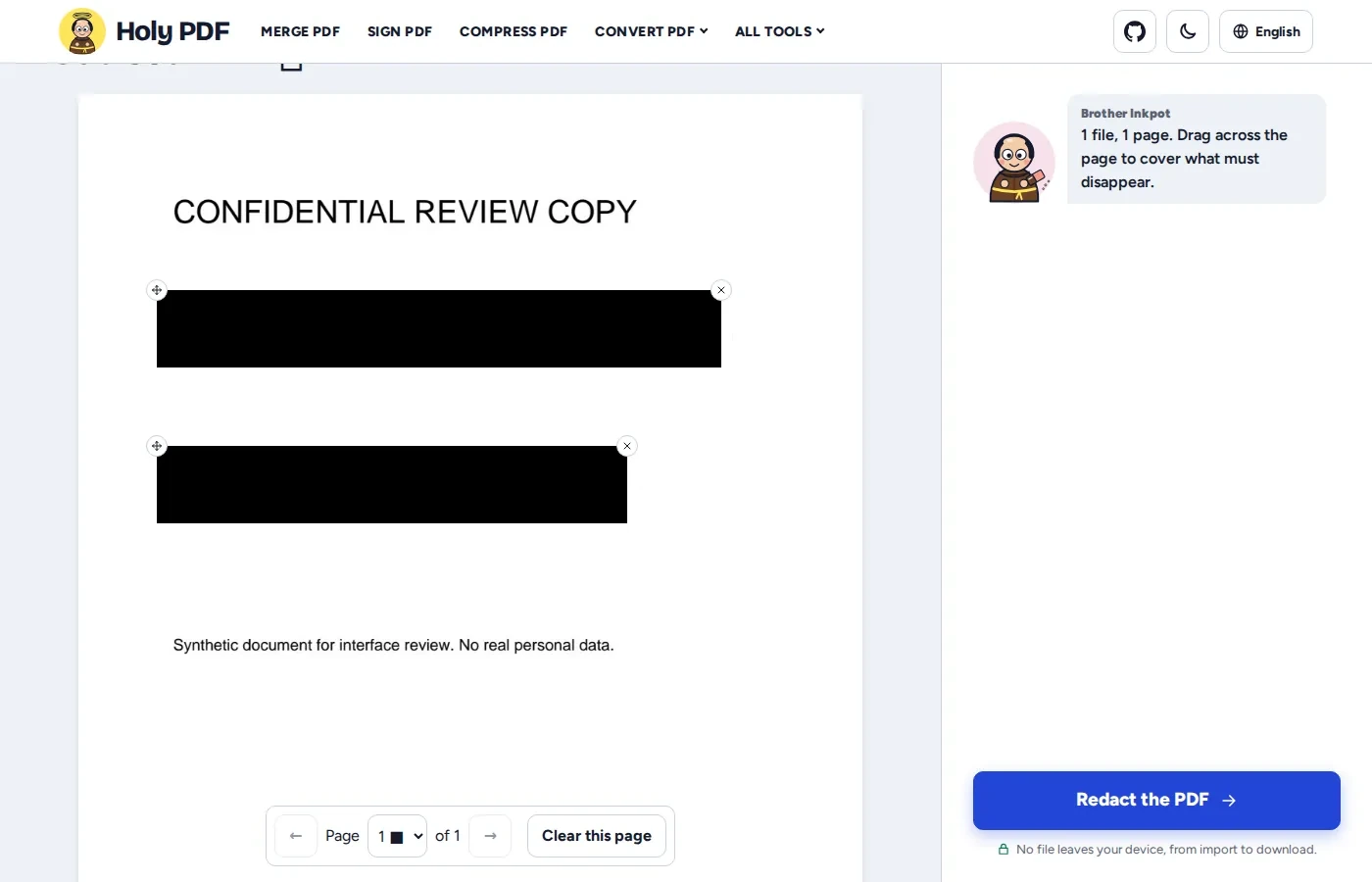
The file is processed in your browser and is not uploaded to Holy PDF. Your PDFs stay on your device explains the local processing model.
What the tested implementation removes
For every page with at least one redaction zone, Holy PDF:
- renders the page at 200 dpi;
- paints the marked zones black;
- replaces that page’s content with a JPEG image of the rendered result.
Engine tests place sample secrets in page text, a Form XObject, an annotation, a link, and form fields. After redaction, those tested secrets are absent from the raw and decompressed output streams. Unmarked pages keep their text. Bookmarks and links that lead to a redacted page still lead to that page.
This design has an intentional trade-off: all text on a marked page becomes part of an image. Text outside the black zones is no longer selectable or searchable either. Form fields, notes, and page links on that page also disappear.
Verify the redacted copy before sharing
Do not stop at the editor preview. Check the downloaded file itself:
- reopen the copy in another PDF reader;
- search for the words, names, and numbers you removed;
- try selecting and copying text near the black zones;
- inspect every page, including unmarked pages;
- review the document title, bookmarks, and metadata;
- confirm that you are attaching the redacted copy, not the original.
Adobe treats redaction and hidden-information sanitization as separate steps. Holy PDF does not claim that its redaction output is sanitized: the redaction tool does not fully inspect every metadata field or hidden structure.
Limits and trade-offs
Holy PDF refuses signed PDFs and XFA forms. It does not fully check the document title, bookmarks, metadata, tag-tree replacement text, some default form-field values, or page thumbnails. Review those items separately before a sensitive disclosure.
A marked page can also make the output larger; the current specification describes about 1 MB for an A4 page. If needed, run the result through Compress PDF, then repeat the verification checklist. Protect a PDF can add an opening password, but password protection does not replace redaction.
If you want every page turned into non-selectable pixels, Pixelize a PDF applies that treatment to the whole document. That is a different task from removing selected details.
What about scanned PDFs and OCR?
You can draw redaction zones on a scanned PDF without OCR because the tool works from the visible page. OCR is not required for area-based redaction.
PDF OCR does the opposite kind of work: it adds an invisible searchable text layer to a scan. Use it when you need search and copy features, not as a prerequisite for covering areas in the Redact tool. If a scan already has an OCR text layer, the marked page still becomes an image in the redacted output.
Frequently asked questions
Can I redact a PDF for free?
Yes. Holy PDF’s Redact tool is free and does not require an account. Processing happens on your device.
Can I redact a PDF without Adobe Acrobat?
Yes. Open Holy PDF in a current browser, choose your PDF, mark the areas, and download the new copy. You do not need Acrobat for this workflow.
Is placing a black box over text safe?
Not by itself. A visual box may leave the text underneath. Use a redaction process that removes or replaces the underlying page content, then verify the exported file.
Can I undo a redaction zone?
Before export, remove an individual zone with its X button or use Clear this page. Keep the original because the downloaded redacted page is an image and is not meant to restore the removed content.
Can I redact a scanned PDF?
Yes. Draw zones over the visible scan. OCR is not required for this step.
Does redaction remove PDF metadata?
Not automatically. Holy PDF does not fully check the title or metadata. Inspect hidden information separately before sharing a sensitive document.